Setting up an RBT new portal account requires the official link, accurate identity details, secure login practices, and careful confirmation.
Table of Contents
- RBT new portal account: what it does
- Start from the official link
- Match your legal details
- Secure the login
- Save confirmation and check status
- What account creation does not prove
- Common setup mistakes
- Frequently asked questions
- References
RBT ADMINISTRATION · ACCOUNT SECURITY
RBT New Portal Account: A Safe Setup Checklist
Use the official link, enter accurate details, secure your login, and save confirmation without confusing setup with certification.
Setting up an RBT new portal account is an administrative step that may help a candidate access an application or certification workflow. It does not, by itself, establish eligibility, complete an application, approve a credential, or authorize someone to represent a certification as current.
Because portal addresses, required fields, security controls, and instructions can change, begin with the current official source. Do not rely on an old bookmark, a forwarded screenshot, a search advertisement, or an email link that you cannot verify. Use the account only for the person whose information is being submitted.
This checklist explains careful setup and information security. Follow the current handbook, official portal instructions, employer process, and designated support channel for your specific situation.
RBT new portal account: what it does
An account provides a secure place to begin or manage an administrative process. Depending on the portal, it may allow a user to enter contact information, view application tasks, receive notices, upload documents, or check a status. The exact functions belong to the current portal and should not be guessed from another person’s experience.
Separate account status from credential status. “I created an account” means that a login was established. It does not mean that a submission was accepted, a requirement was met, or a certification is active.
Start from the official link
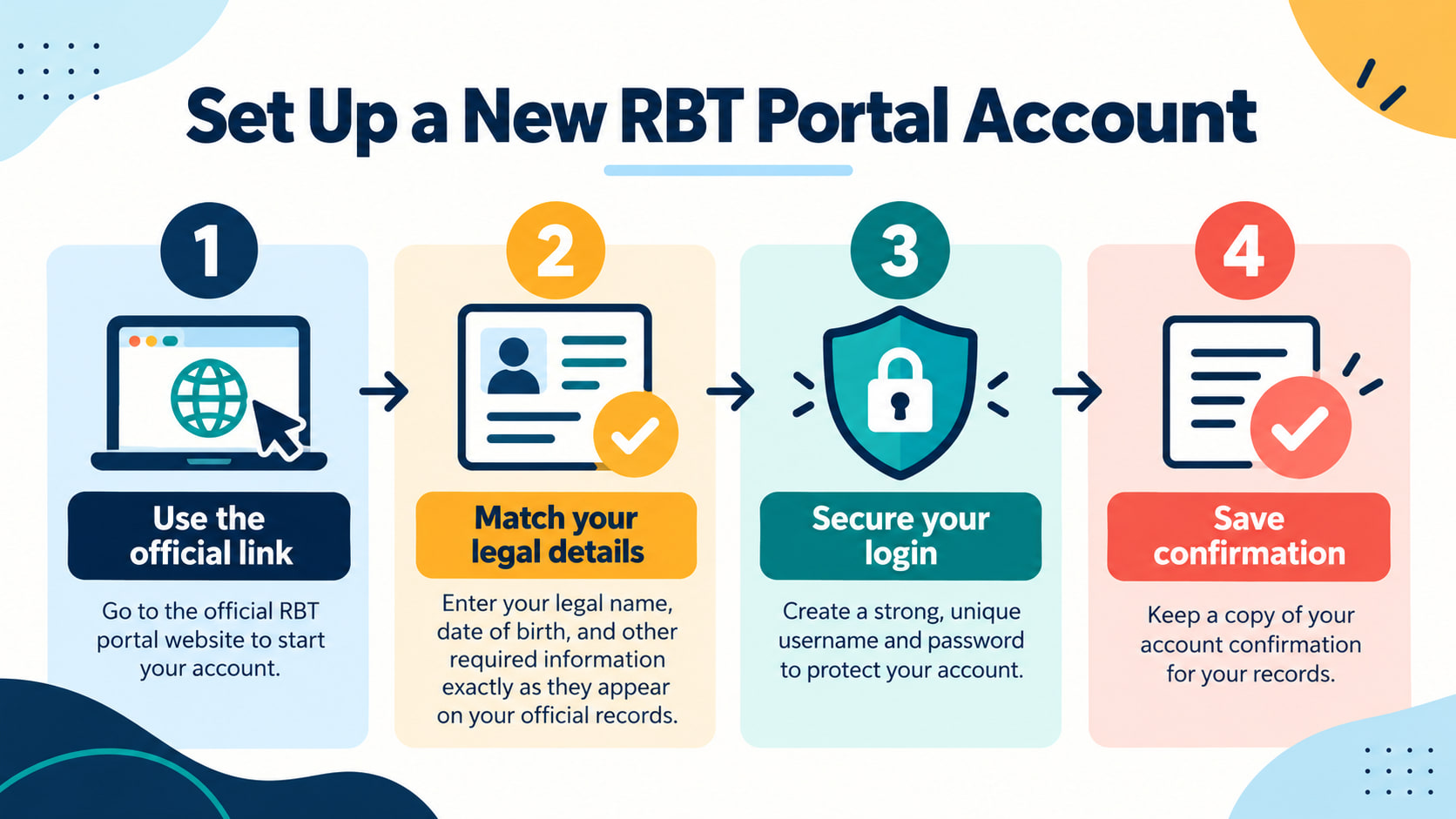
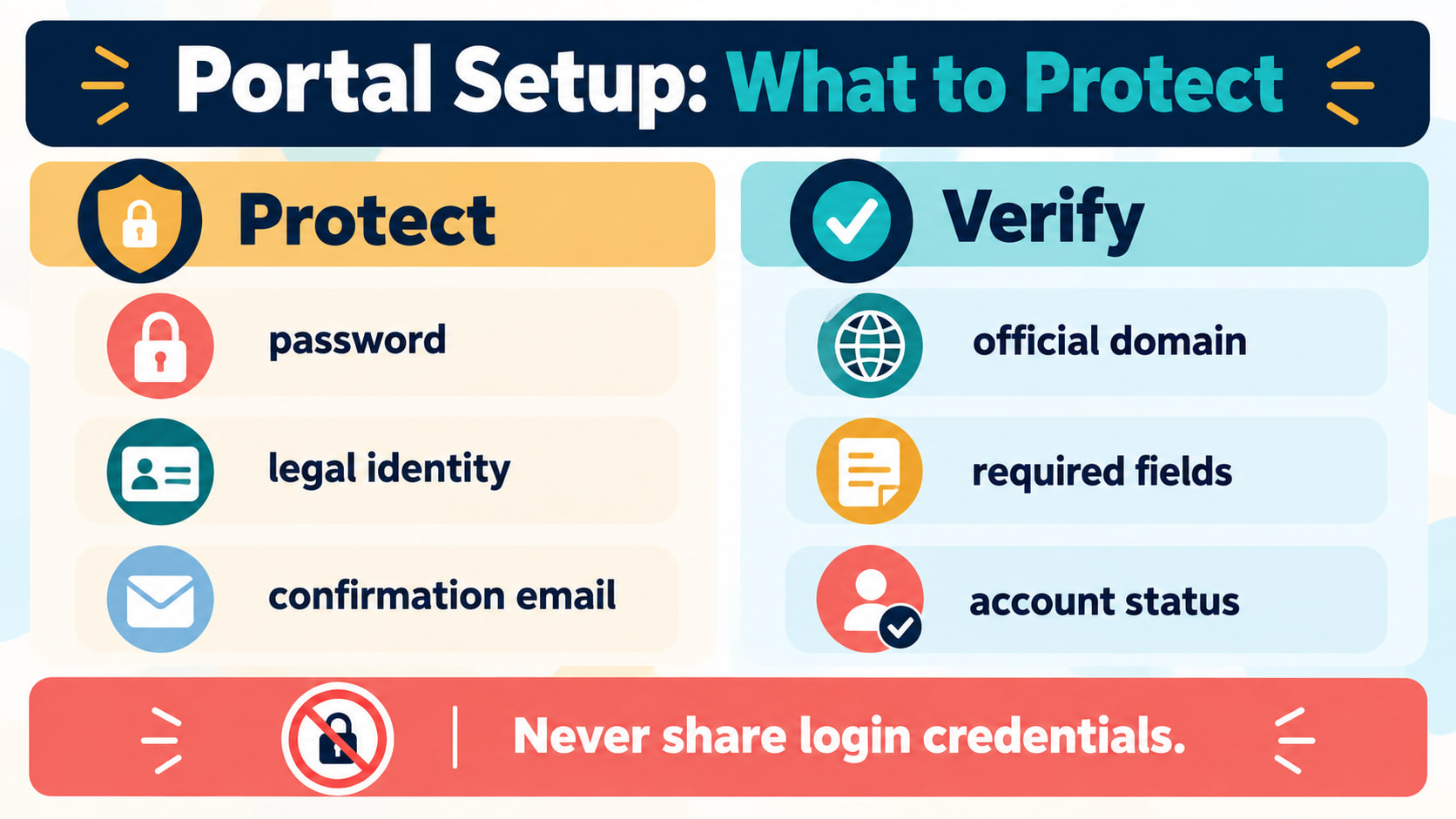
Locate the portal through the current official BACB website or the current instructions that link to it. Check the domain and page context before entering personal information. If an email asks you to log in, open the known official site separately rather than using an unexpected link.
Do not create duplicate accounts because a page loads slowly or a confirmation email is delayed. First check the support instructions and the account-recovery option. Multiple accounts can create confusion about which profile or application is current.
Match your legal details
Enter your name and other required identity details exactly as the official instructions request. Check spelling, spacing, date fields, email address, and contact information before submitting. If your records use a different name or a recent change affects the account, follow the official correction or support process rather than improvising.
Use your own email address or the approved address for the account. Do not create a profile using another person’s identity or let a coworker submit information under your login. Keep copies of submitted information only in an approved, secure location.
Secure the login
Create a strong, unique password and use the portal’s approved multi-factor or recovery options. Do not share a password, verification code, security question, or active session. Avoid saving credentials on a shared device unless the device and method are approved.
Sign out when finished on a shared computer. If you suspect that credentials were exposed, use the official recovery or password-change process and notify the appropriate support contact. Do not respond to a suspicious request by sending the password or code by email.
Save confirmation and check status
After setup or submission, read the confirmation page and email carefully. Record the date, confirmation number, and next action in an approved private place. A confirmation of account creation is not necessarily a confirmation that an application, payment, document, or credential requirement was accepted.
Return through the official portal to check status rather than relying on an unofficial message. If the account shows an error, missing field, duplicate profile, or unexpected status, capture only the minimum necessary information and contact the designated support route.
What account creation does not prove
A new account does not prove that the candidate completed required training, competency assessment, application steps, examination requirements, supervision, or renewal tasks. It does not grant permission to use a credential title or start services outside the authorized employment and supervision process.
Do not publish a new credential claim just because the portal account exists. Wait for the official status and follow the applicable rules for representing current credentials.
Common setup mistakes
- Using an unverified link: personal information is entered on a look-alike site.
- Creating duplicate accounts: a delayed email leads to another profile.
- Entering informal details: a nickname or old email creates a mismatch.
- Sharing credentials: a helper receives a password or verification code.
- Confusing setup with approval: account creation is treated as certification.
- Ignoring confirmation: the next required step is missed because the user stops at login.
When the portal instructions and another message conflict, pause and ask through the official support channel. Keep the question specific and do not send more personal information than necessary.
Before closing the session, verify the account email, the recovery method, the confirmation record, and the next action. A final review catches simple errors before they become a support request or delay.
Keep administrative records separate from study notes and client records. A confirmation number, identity document, or portal message may contain personal information that should not be placed in a workbook, shared drive, public post, or ordinary chat. Store it only as long as the approved process requires.
If a support representative asks for information, confirm that the request comes through the official channel before responding. Share the minimum necessary detail and never send a full password or one-time security code. When a request feels urgent or unusually broad, pause and use the contact information published on the official site.
Account recovery is part of setup planning. Record the approved recovery email or method, keep contact information current, and review notices for changes. If your email address changes, update it through the portal’s current process instead of opening a second account.
Frequently asked questions
Does creating an RBT portal account certify me?
No. It is an administrative step and does not establish eligibility, approval, examination completion, or active certification.
Can someone else create the account for me?
Use the current official process. Do not share credentials or allow another person to access the account unless an approved process explicitly permits it.
What if I do not receive the confirmation email?
Check the official recovery and support instructions, including spam settings, before creating another account. Avoid sending your password or code in a reply.
Can I use my account confirmation as proof of certification?
No. Keep it as an administrative record and use the official status or verification process for credential questions.
Source note: Review the current BACB RBT Handbook, official portal instructions, security guidance, organizational policy, and designated support process. This article is educational and does not provide individualized legal, clinical, employment, or credentialing advice.
Ready to practice the RBT concepts you just reviewed?
Try an independent, original RBT practice resource with exam-style questions, scoring, and answer explanations.
References
- Behavior Analyst Certification Board. RBT Test Content Outline, 3rd edition.
- Behavior Analyst Certification Board. RBT Handbook.
- Behavior Analyst Certification Board. RBT Ethics Code.