
RBT add supervisor to BACB account tasks require verifying the correct account, relationship, dates, current portal instructions, and final confirmation rather than assuming submission equals approval.
Table of Contents
- Before you start with RBT add supervisor to BACB account
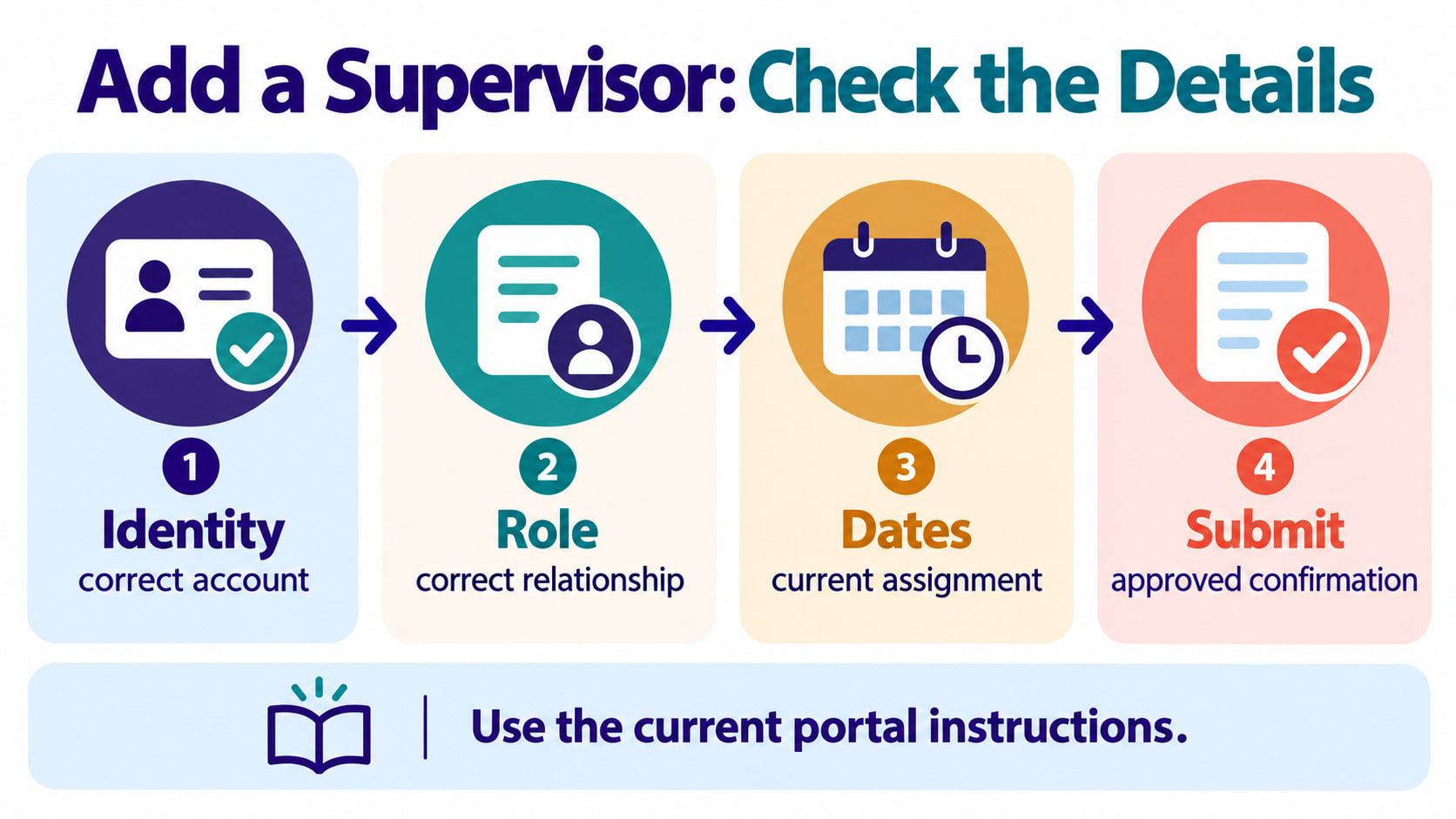
- Verify account identity
- Check the supervisor relationship
- Review dates and assignment details
- Submit through current instructions
- Confirm and save the result
- Common account-update mistakes
- Frequently asked questions
- References
RBT ADMINISTRATION · SUPERVISION RECORDS
RBT Add Supervisor to BACB Account: Guide
A verification-first checklist for account details, relationship status, submission, and follow-up.
RBT add supervisor to BACB account tasks require verifying the correct account, relationship, dates, current portal instructions, and final confirmation rather than assuming submission equals approval. Account tasks are administrative steps; they do not replace supervision, assigned procedures, or the responsibilities of the organization and supervisor.
Portal labels and workflows can change. Use the current official instructions and any direction from the responsible organization. This article offers a preparation and verification framework, not a promise that every account will show the same buttons, status names, or approval timeline.
Before you start with RBT add supervisor to BACB account
Clarify the purpose of the update. Are you recording a new supervisor, correcting an existing relationship, responding to an organization request, or checking a pending status? The reason affects which person or system should initiate the change. Do not begin with an old screenshot or a copied form if the current portal has different instructions.
Gather only the information the authorized process requires. Keep your account credentials private, use a secure device and connection, and avoid sending personal identifiers through an unapproved message. If another person is entering information for you, confirm that they are authorized and understand which details are needed.
Verify account identity
Check that you are signed in to the correct account and that the name, email, credential or application context, and organization details match the intended record. Similar names, shared devices, saved browser sessions, and multiple accounts can create an update in the wrong place.
Read the confirmation screen before submitting. Check spelling, role, contact details, and any identifier the portal displays. If something is wrong, stop and use the correction route. Do not create a second account simply to bypass an error unless current instructions direct you to do so.
Check the supervisor relationship
Adding a supervisor name is not the same as proving that supervision has begun or that all requirements are satisfied. Confirm that the person is the intended supervisor, that the relationship is authorized for the setting, and that both sides understand who is responsible for direction and documentation.
If the supervisor has not agreed, the organization has not assigned the relationship, or the portal shows a mismatch, pause and ask before submitting. Do not select a person because their name looks familiar, and do not use another person’s account or approval.
Review dates and assignment details
Dates can affect how a record is interpreted. Check the start date, end date, organization, location or service context, and any status field the current process requires. Enter only dates you can support. If the relationship began later than expected or ended, use the official correction or change process rather than adjusting dates to make a record look continuous.
Keep a private administrative note of what you submitted and when. Save only through the approved method and store it where the organization permits. A screenshot may help you remember a confirmation, but it should not be shared broadly or used as a substitute for the official record.
Submit through current instructions
Follow the current portal prompts, required invitations, signatures, or organization steps. Read any notice about pending review, missing information, or an action required from the supervisor. If the process sends an invitation, the supervisor may need to complete a separate step before the relationship appears as active.
Do not interpret a successful click as final approval. A system may accept a request, place it in a queue, or show it as pending. The final status and current official instructions control. If the page gives an error, capture the error in the approved way and contact support rather than submitting repeated requests that create confusion.
Confirm and save the result
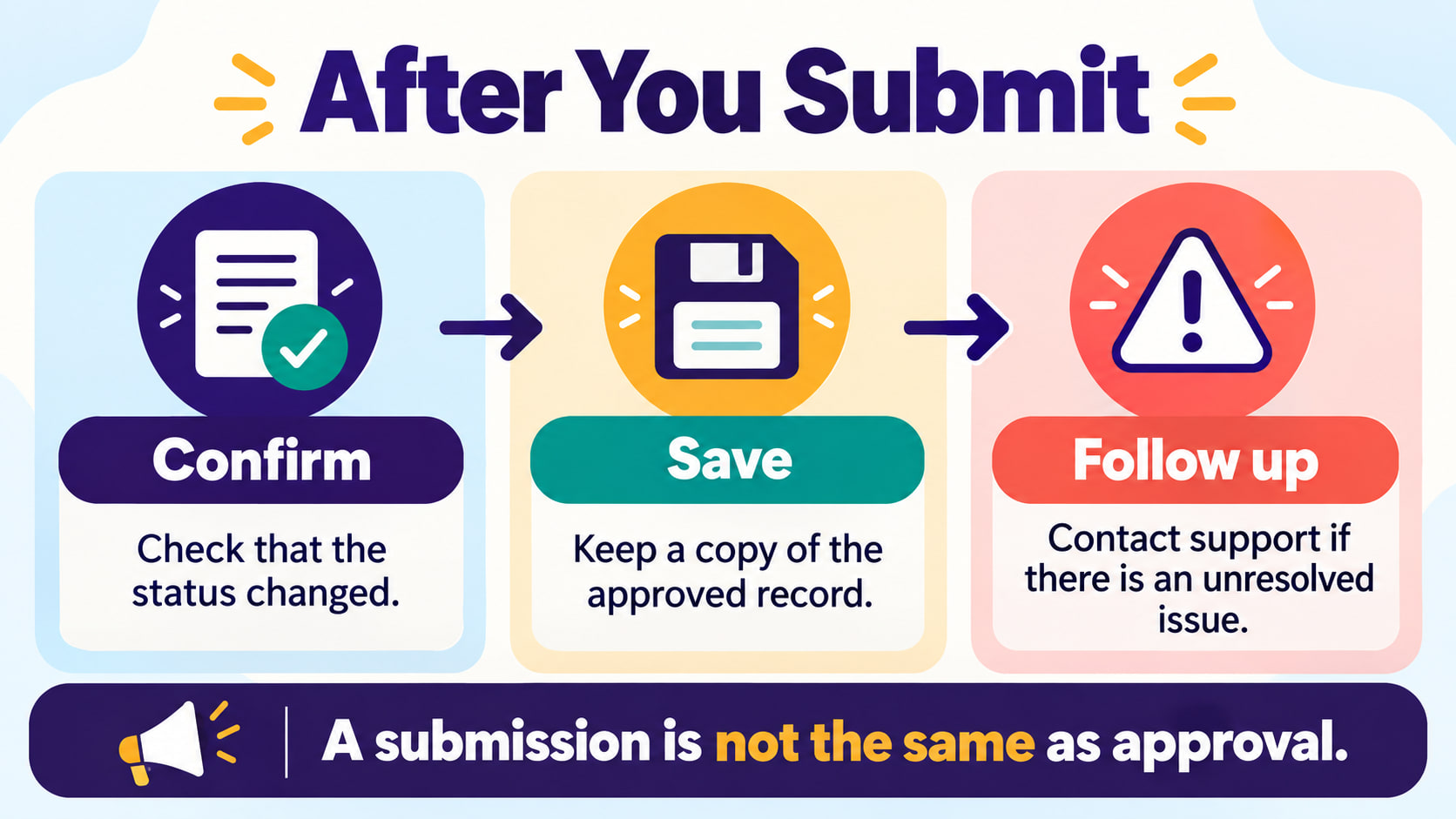
After submitting, return to the authoritative record and verify the status. Check whether the supervisor appears, whether the relationship is pending or active, and whether a next action remains. Record the date and status for your own administrative follow-up without storing unnecessary sensitive information.
If the status does not change, use the designated support or organization contact. State the account area checked, the date and time, the message shown, and the question that needs an answer. A clear report is more useful than repeated submissions or a claim that approval has already happened.
Common account-update mistakes
- Using outdated instructions: a screenshot or old article may not match the current portal.
- Choosing the wrong account: a saved login or similar name can send the update to an unintended record.
- Skipping consent: do not list a supervisor who has not agreed or been assigned.
- Guessing dates: enter supported information and use the correction route for discrepancies.
- Confusing submission with approval: check the final status and any remaining action.
- Sharing credentials or screenshots: use approved security and communication practices.
Use a simple four-part check: identity, relationship, dates, and confirmation. If one part is uncertain, pause and ask the appropriate contact. Account administration works best when the record is accurate, the supervisor relationship is real, and the status is verified rather than assumed.
Frequently asked questions
Does adding a supervisor to a BACB account activate supervision?
Not necessarily. A submission, invitation, pending status, and final approval can be different steps. Follow current official instructions and confirm the status with the responsible organization.
What if the supervisor does not appear after submission?
Check the status, required next action, and current instructions. Then contact the designated support or organization route with concise, objective details.
Can I add a supervisor without asking them?
Do not assume that you can. Confirm the relationship and follow the authorized process before submitting another person’s information.
Should I keep a screenshot of the update?
Use the organization’s approved record and storage rules. A screenshot may be a temporary reference, but it is not automatically the official status and should not be shared casually.
Source note: Review current BACB materials, current portal instructions, organizational policy, approved systems, and supervisor or administrator direction for your situation. This article is educational and does not provide individualized legal, clinical, employment, or credentialing advice.
Ready to practice the RBT concepts you just reviewed?
Try an independent, original RBT practice resource with exam-style questions, scoring, and answer explanations.
References
- Behavior Analyst Certification Board. RBT Test Content Outline, 3rd edition.
- Behavior Analyst Certification Board. RBT Handbook.
- Behavior Analyst Certification Board. RBT Ethics Code.